
Start with the app
Review signals, History, Results and the Trading Journal interface directly from Android.
AADRYX Mobile Signals is an AI-assisted GOLD / XAUUSD market analysis app built for traders who want structured signal ideas, clearer market context, result tracking, and optional MT5 AutoTrade access.
The app now goes further with in-app BUY & SELL, Trading Journal review, Trade Copier and SmartProtect — all organised around one connected Android control centre.
Use AADRYX for market analysis, structured trade review and MT5 workflow control — never as a guarantee of profit.
You do not need to wait for a signal to learn the app. Install first, explore the workflow, and connect MT5 only when you are ready to use the optional execution tools.
Review signals, History, Results and the Trading Journal interface directly from Android.
Pairing and MT5 setup take a few minutes. Doing it early means you are not configuring tools while a live setup is already moving.
Eligible users can explore the more complete Pro workflow before deciding whether to continue with an active subscription.
Signals, in-app BUY/SELL, AutoTrade, Trade Copier, SmartProtect and Trading Journal are designed around one Android control centre.
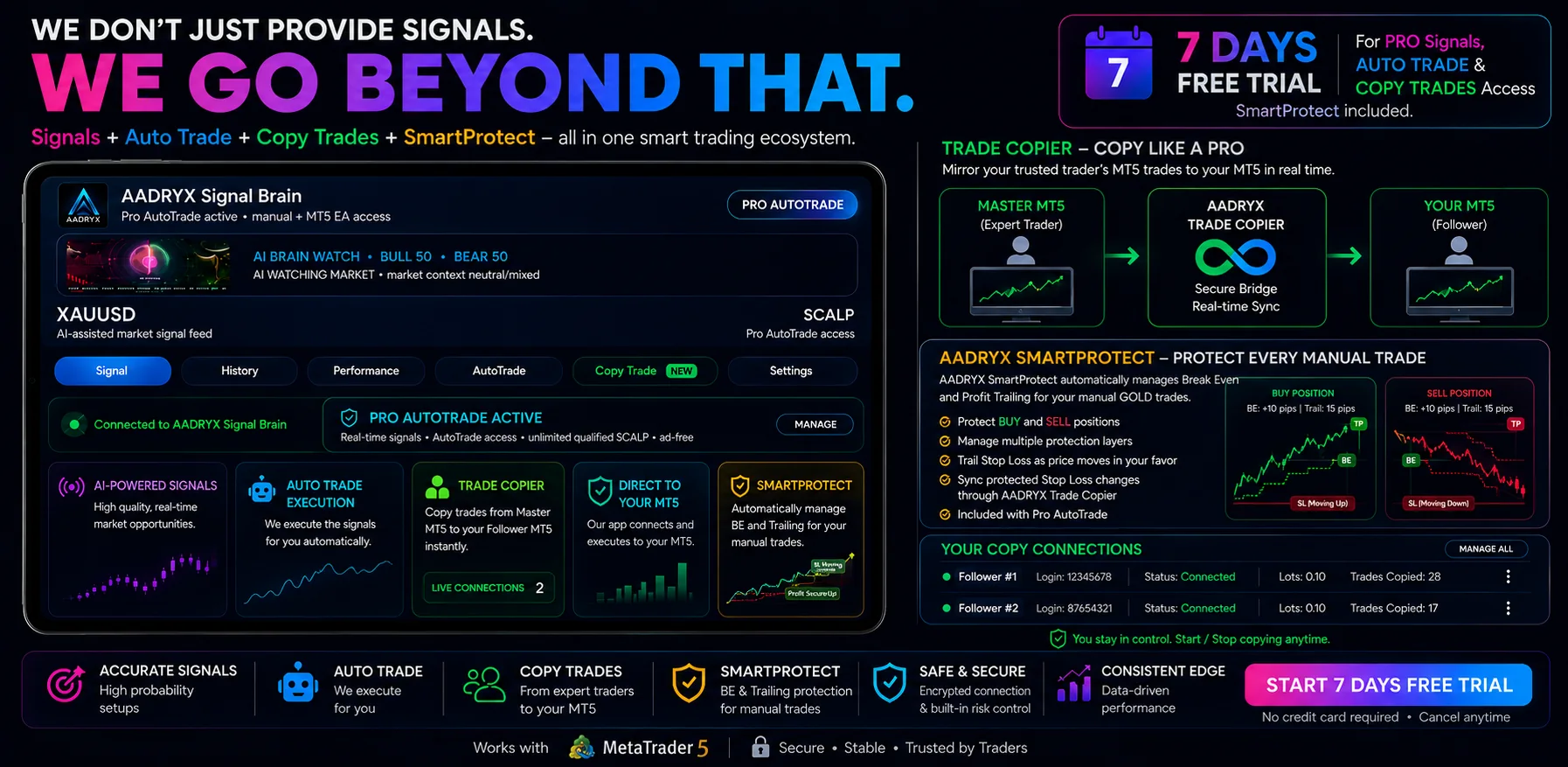
Unlike basic alert apps, AADRYX is designed to help traders review market setups, manage connected MT5 tools and track what happened afterwards.
Receive structured XAUUSD / GOLD signal ideas powered by the AADRYX Signal Brain.
Review BUY / SELL direction, entry zone, stop loss, take profit levels, confidence, bias, reasons and outcomes at a glance.
Track signal outcomes, recent results and performance data so you can review how released signals behave over time.
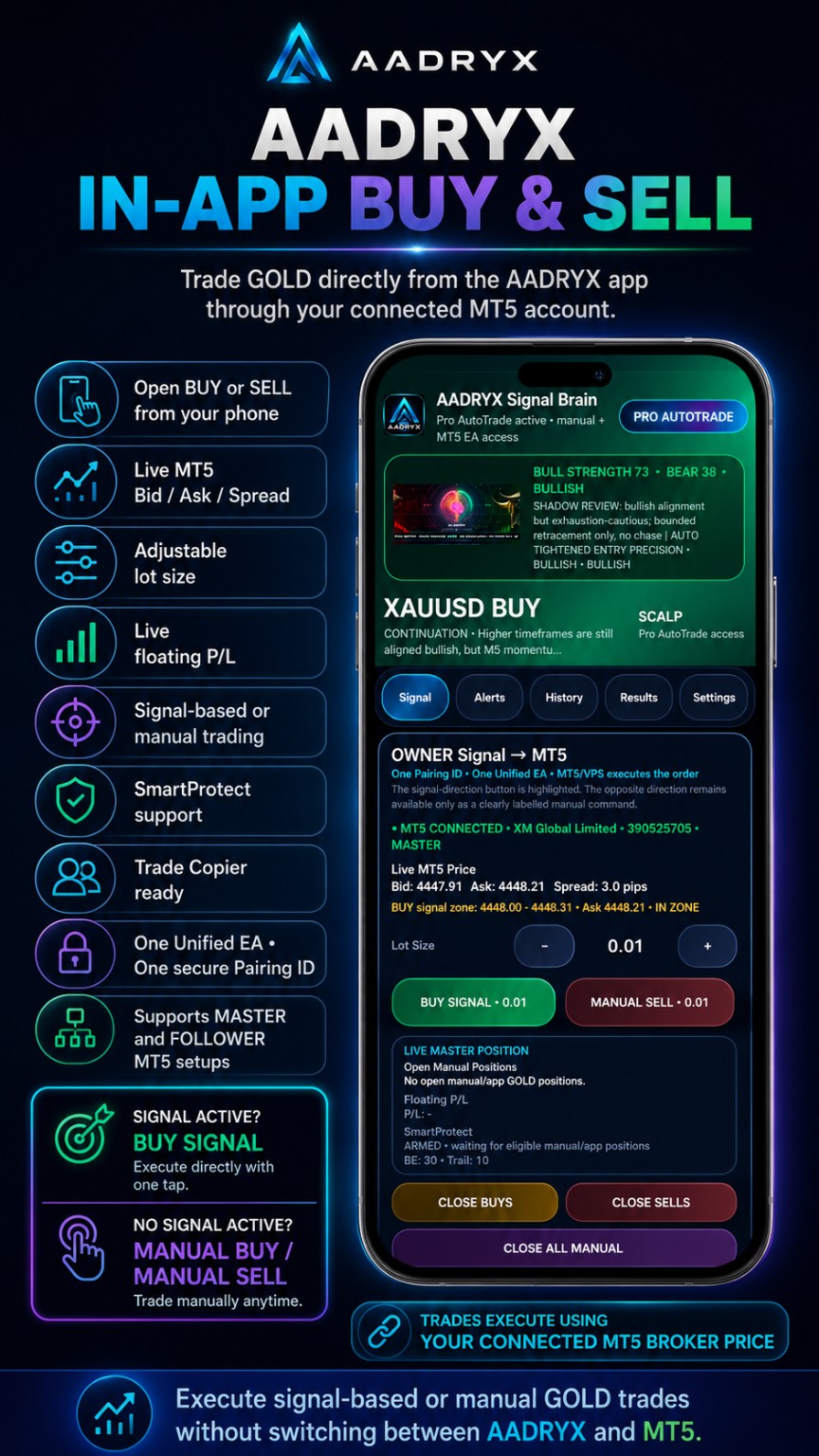
Open signal-based or manual GOLD trades from the app through your connected MT5 setup, with live price data and adjustable lot size.
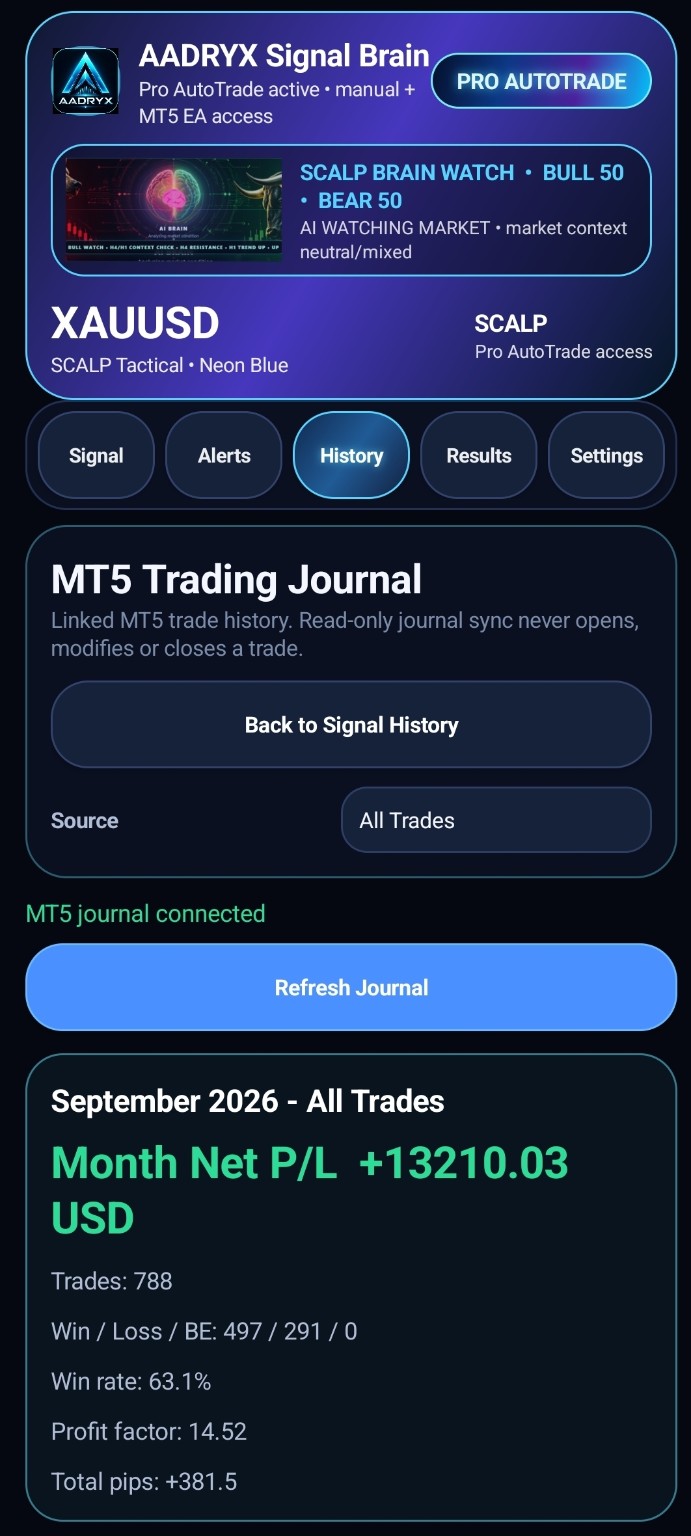
Read linked MT5 trade history, journal stats, win/loss mix, pips and monthly P/L from a read-only journal view.
Manage signal access, AutoTrade settings, connection status and related trading tools directly from your Android app.
Copy trades from one MT5 Master account to up to 50 Follower accounts with flexible lot settings and live monitoring.
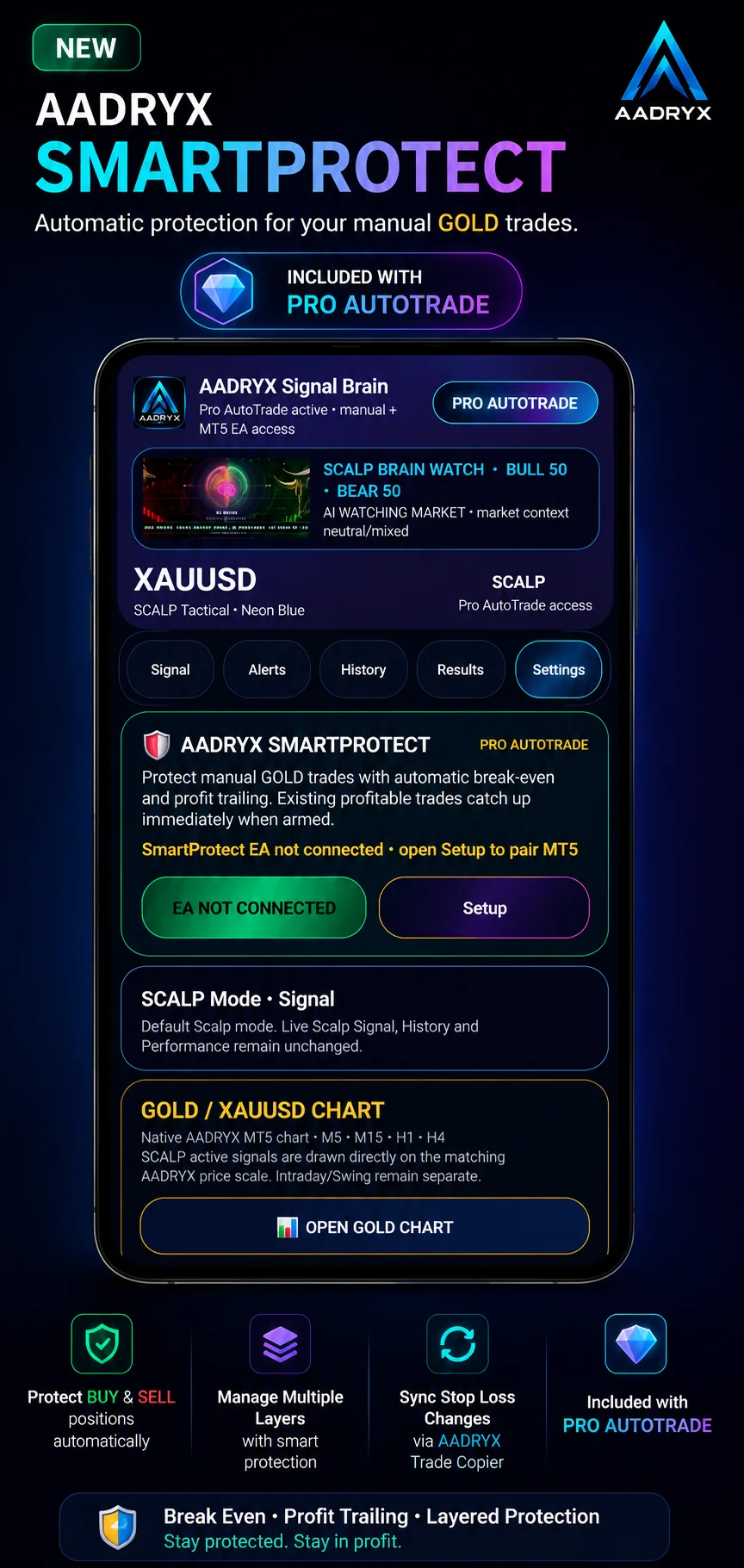
Automatically manage Break Even and Profit Trailing for eligible manual GOLD trades, including protection sync via Trade Copier.
One Unified EA and one secure Pairing ID connect the Android control centre with supported AADRYX MT5 workflows.
The numbers below are the current figures supplied by AADRYX. They are social proof of adoption, not a promise of trading performance.
The most recent SCALP Results screenshot supplied for the website shows 13 signals and a 100.0% Real Win reading for that displayed day, with 0 Pure SL. This is a recent snapshot only — not an all-time win rate.
This section highlights the latest SCALP results snapshot shared by AADRYX. It is a recent example, not an all-time or guaranteed result.
The most recent screenshot shared by AADRYX shows a strong day with a clean decisive sample and no pure SL in the displayed window.
Users can execute signal-based or manual GOLD trades without constantly switching between AADRYX and MT5 Mobile.
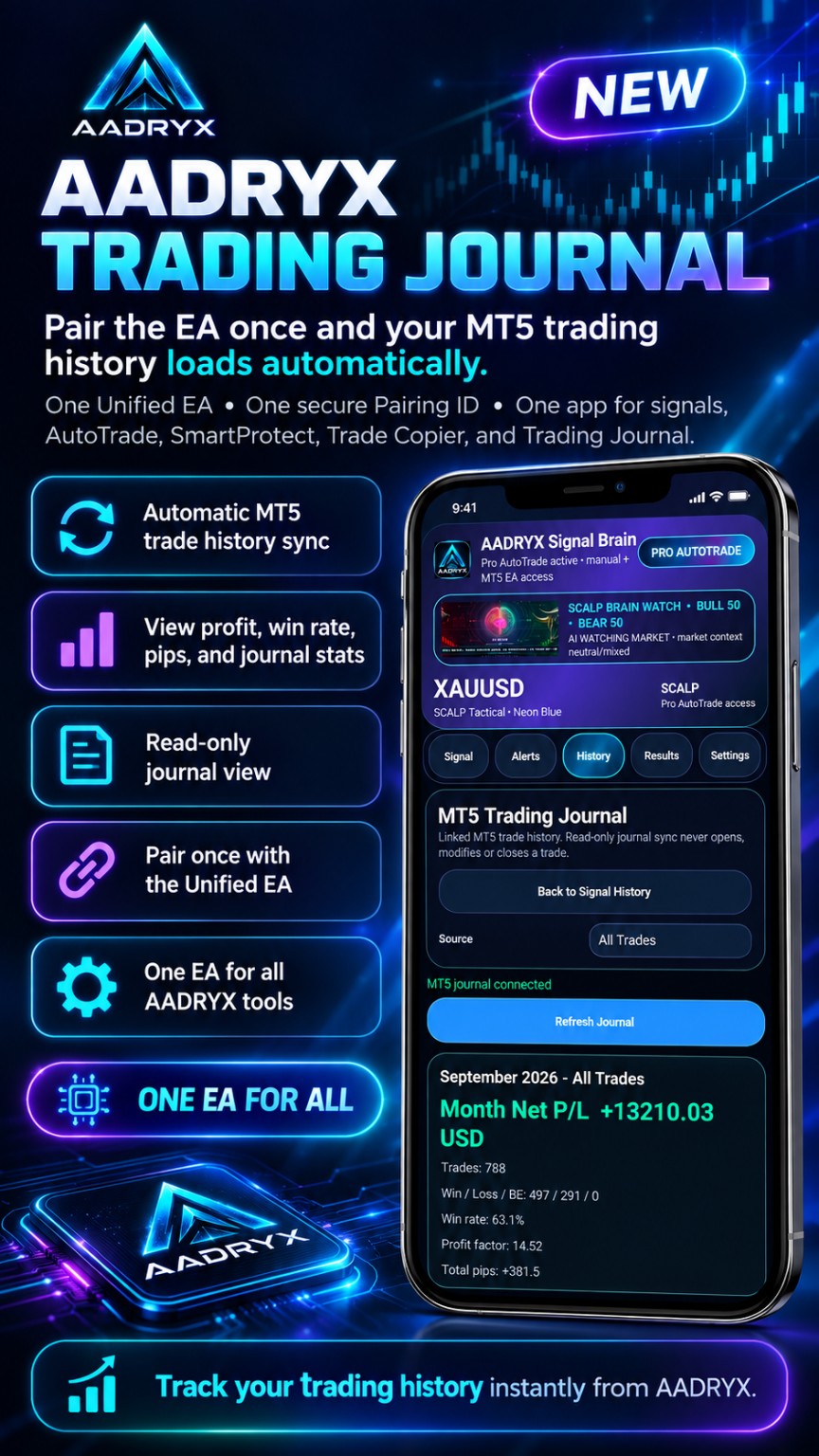
The AADRYX Trading Journal adds a read-only MT5 history view inside the app so users can review profit, win rate, pips and journal stats without leaving the Android workflow.
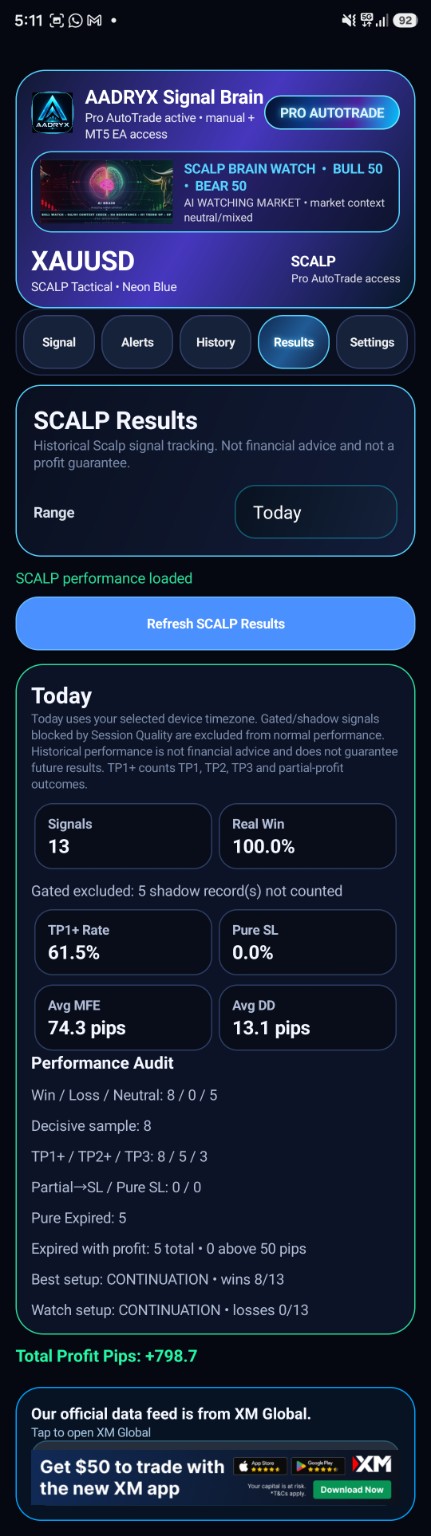
AADRYX Pro AutoTrade allows eligible users to connect the app to an MT5 EA running on their own PC or VPS. The app manages access and cloud settings; the MT5 EA receives cloud signal instructions and executes only according to the user’s selected AutoTrade settings.
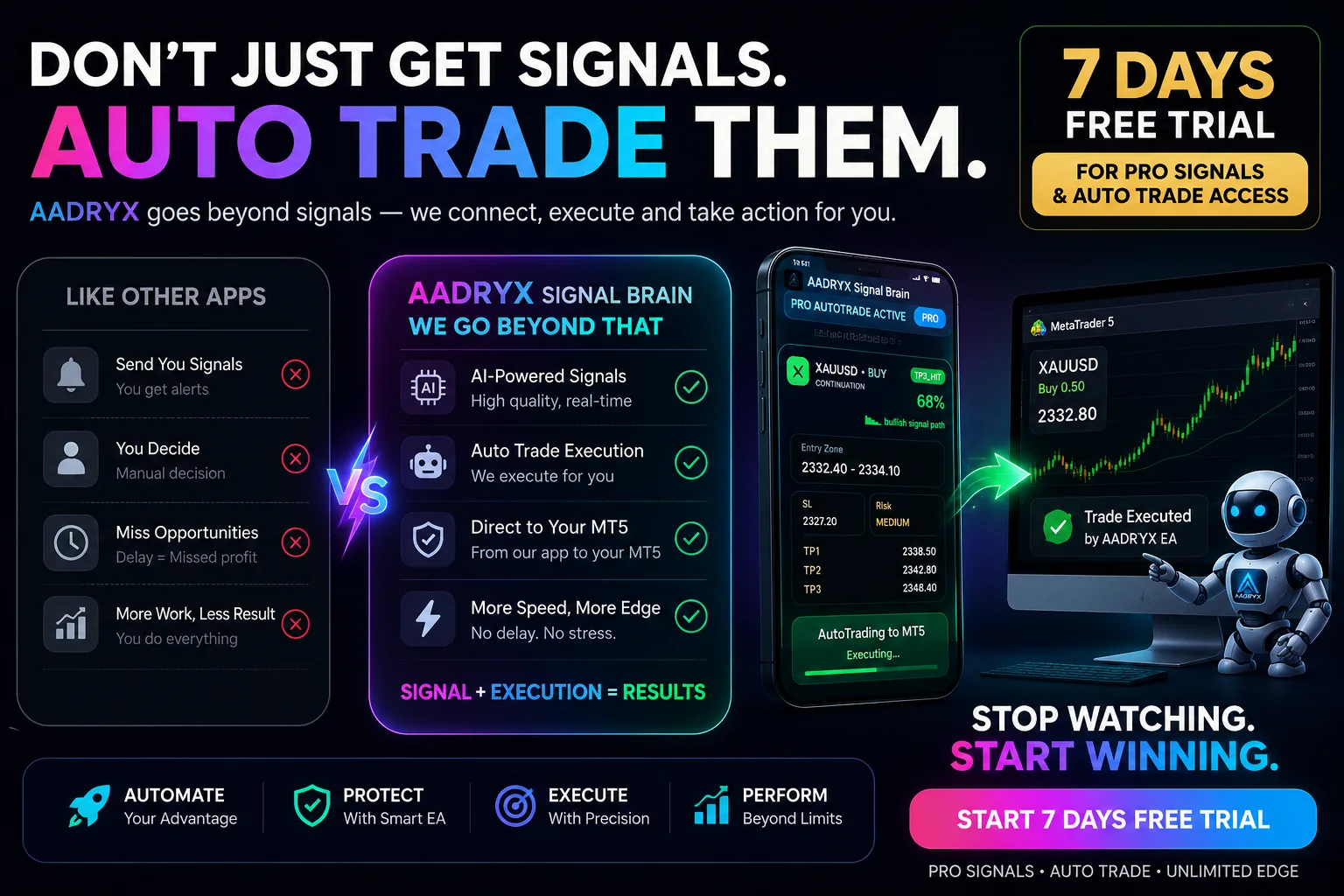
AADRYX Trade Copier mirrors trades from a Master MT5 account to linked Follower accounts with flexible lot settings, manual trade support, optional AADRYX AutoTrade copying and live connection monitoring.
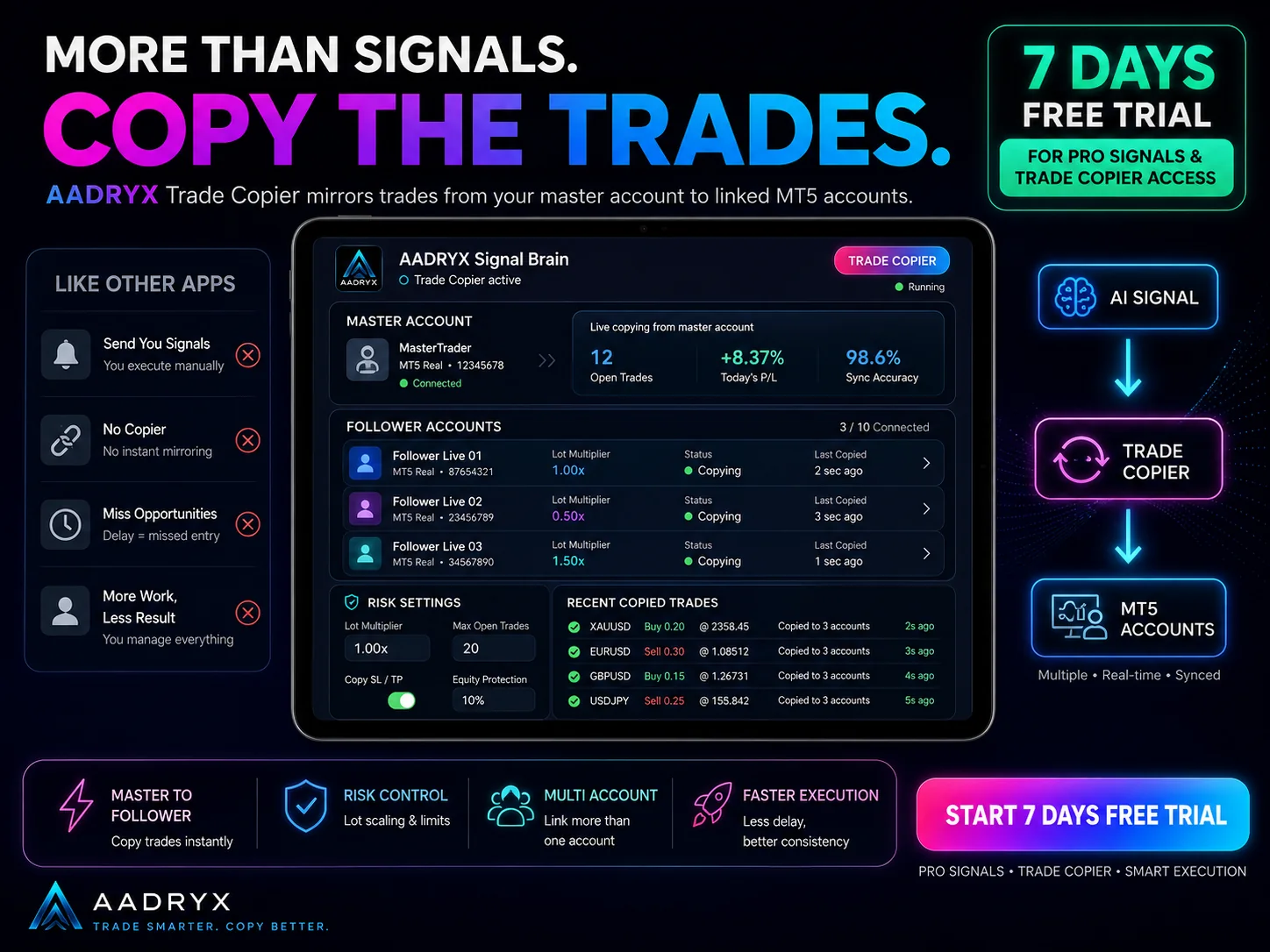
AADRYX SmartProtect automatically manages Break Even and Profit Trailing for eligible manual GOLD trades, supports BUY and SELL positions, and can sync protected Stop Loss changes through AADRYX Trade Copier.
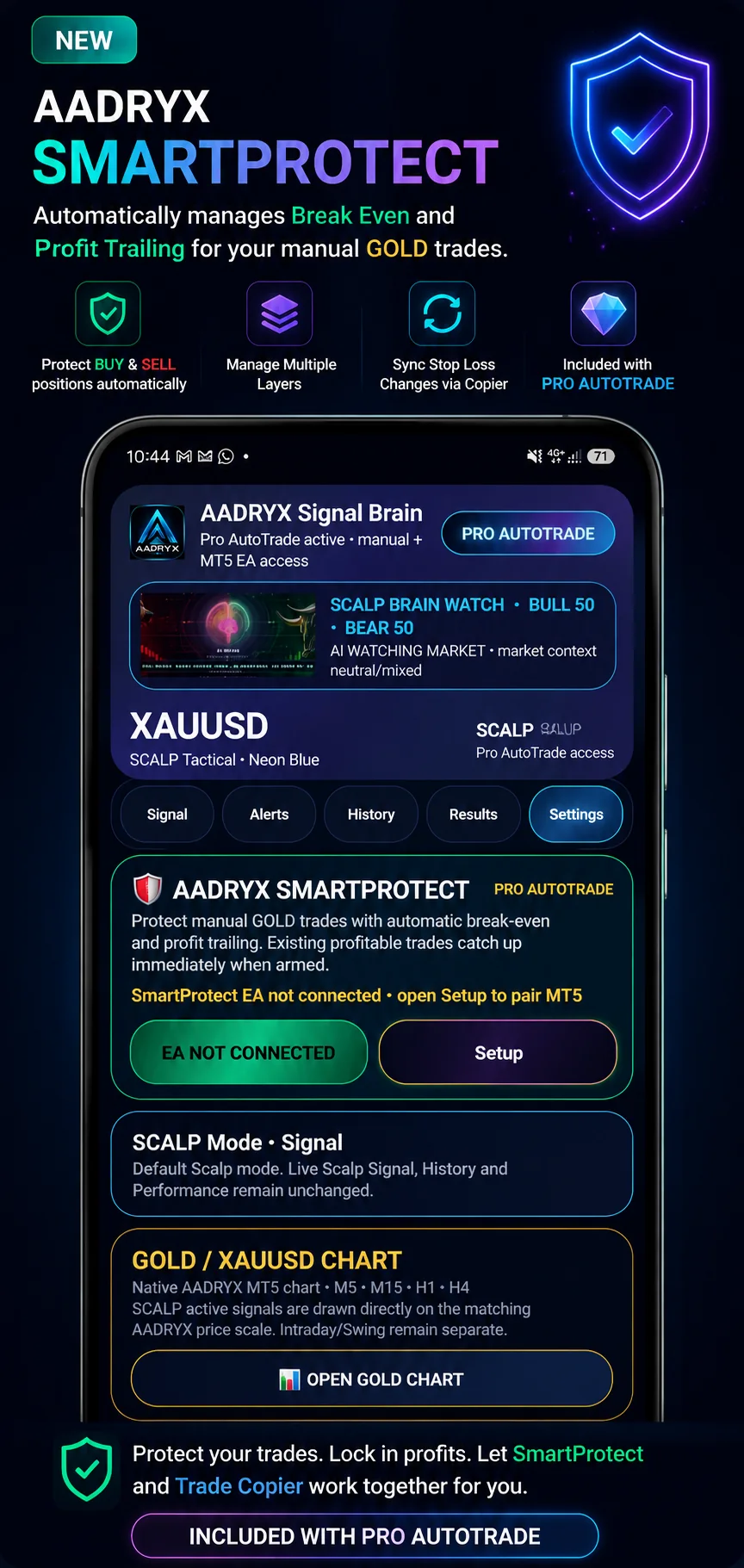
The website no longer asks visitors to understand every MT5 feature before downloading. Start with the Android app and move deeper only if the workflow suits you.
Download the Android app from Google Play and explore the signal, History, Results and Settings experience.
Explore the fuller Pro experience and decide whether the premium signal and connected-tool workflow fits how you trade.
Use the Unified EA and secure Pairing ID if you want AutoTrade, in-app trading, Trade Copier, SmartProtect or linked journal features.
Free users may receive limited or delayed access. Eligible users can explore a 7-day Pro trial. Connected MT5 tools remain optional and should be enabled only when you understand their setup and risk controls.
This short promo helps explain the Android control-centre concept. The separate MT5 setup tutorial below covers the practical connection steps.
The setup tutorial covers EA installation, Pairing ID, SET file, MT5 permissions and connection verification so the app can become your control centre.
Trading forex, commodities, gold, CFDs and leveraged products involves significant risk and may not be suitable for all users. Market prices can move quickly and losses can occur.
AADRYX does not guarantee profit, win rate, income, trading success, or any specific market outcome. Past performance does not guarantee future results.
Signals are provided for market analysis, educational support and general guidance only. Always use your own confirmation before entering the market. You are responsible for your own trading decisions, account settings, lot size, risk management, and any profit or loss.
AADRYX is not a financial advisor, broker, investment manager, or portfolio management service.
No. The Android app acts as the signal and control centre. The MT5 EA runs on the user’s own PC or VPS.
Yes. You can review signal cards manually and use your own confirmation without enabling AutoTrade, Trade Copier or in-app trade execution.
It allows users to open signal-based or manual GOLD trades from the AADRYX app through a connected MT5 setup, with live Bid / Ask / Spread, lot-size control and position visibility.
The Trading Journal is a read-only MT5 history sync so users can review trade history, win rate, pips and P/L inside the app. It does not open, modify or close trades.
The current product description supports 1 Master account and up to 50 Follower/copier accounts, subject to the active copier configuration and account limits.
Yes. SmartProtect is described as protecting manual GOLD BUY and SELL positions, including multi-layer positions, with Break Even and Profit Trailing controls.
No. Signals, automation, copy trading and protection tools can all experience losses. The user remains responsible for account selection, settings, lot size, leverage and risk.